
Accessing the overview
After signing in with Discord, you are automatically taken to the Overview page. You can return to this page at any time by clicking the Buy Now Button at the homepage or at the navigation bar.Page layout
The Overview page is divided into several sections, each providing different information about your account.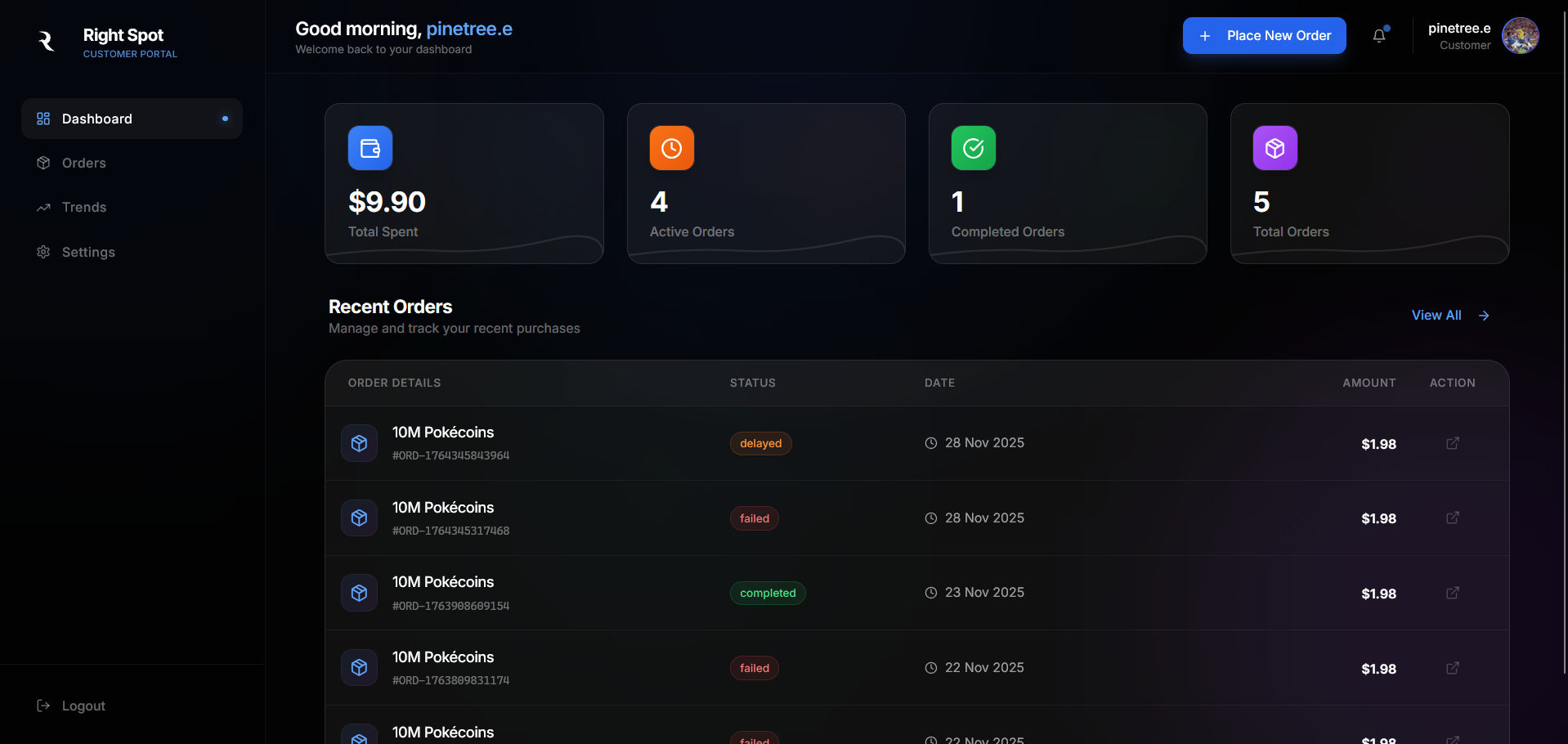
Statistics cards
At the top of the Overview, you will find statistics cards displaying your account metrics.
- Total orders: This card shows the total number of orders you have placed since creating your account. This includes all order types—instant orders, pre-orders, completed, and pending.
- Total Pokecoins purchased: The cumulative amount of Pokecoins you have purchased across all your orders. This gives you a quick view of your overall purchase volume.
- Total spent: Your lifetime spending on the platform displayed in your currency. This helps you track your overall investment in Pokecoins.
Recent orders
Below the statistics, you will find a list of your most recent orders.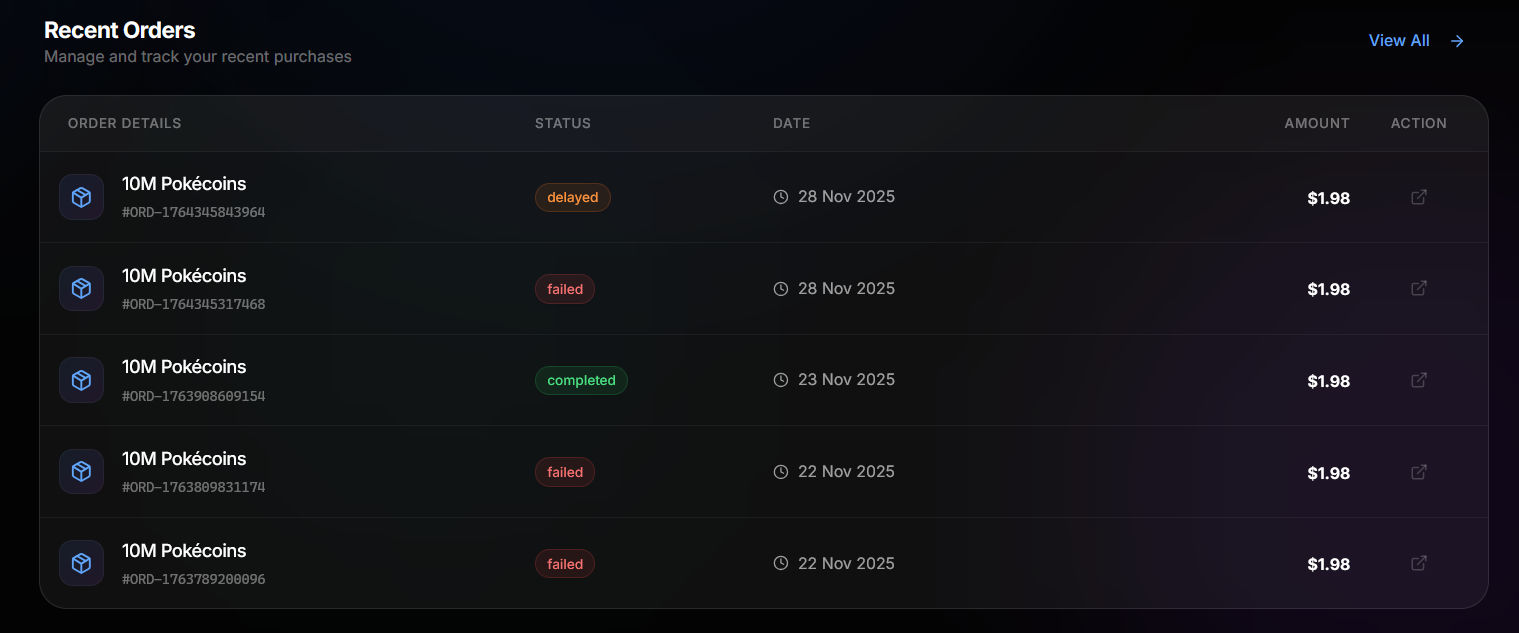
Order information displayed
Each order in the list shows:- Order ID: The unique reference number for the order
- Pokecoin amount: How many Pokecoins were purchased
- Status: Current state of the order (pending, processing, delivered, etc.)
- Date: When the order was placed
Interacting with orders
You can click on any order to view its full details. This takes you to the order details page where you can see:- Complete order timeline
- Payment information
- Delivery confirmation
- Support options
Quick actions
The Overview includes quick action buttons for common tasks.Buy Pokecoins
Starts a new purchase. Clicking this button takes you directly to the purchase flow where you can select quantity and complete payment.View all orders
Opens the full Orders page where you can see your complete order history with filtering and search options.Sidebar navigation
The sidebar on the left provides navigation to all dashboard sections.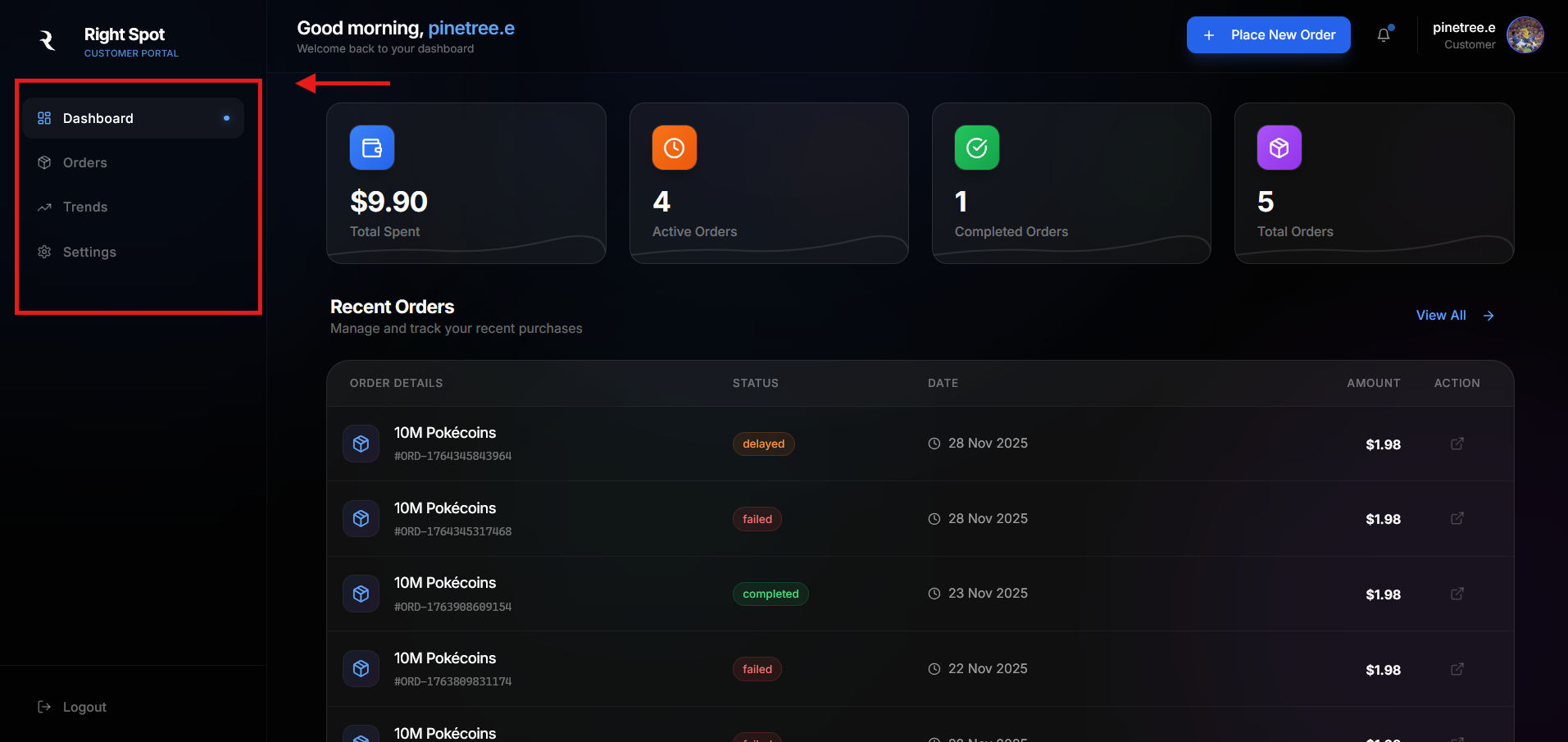
Available sections
- Overview: The current page (your dashboard homepage)
- Orders: Complete order history and management
- Trends: Analytics and statistics about your purchases
- Settings: Account preferences and notification options
- Notifications: Updates about your orders and account
Mobile navigation
On mobile devices, the sidebar collapses into a menu icon. Tap this icon to reveal the navigation options.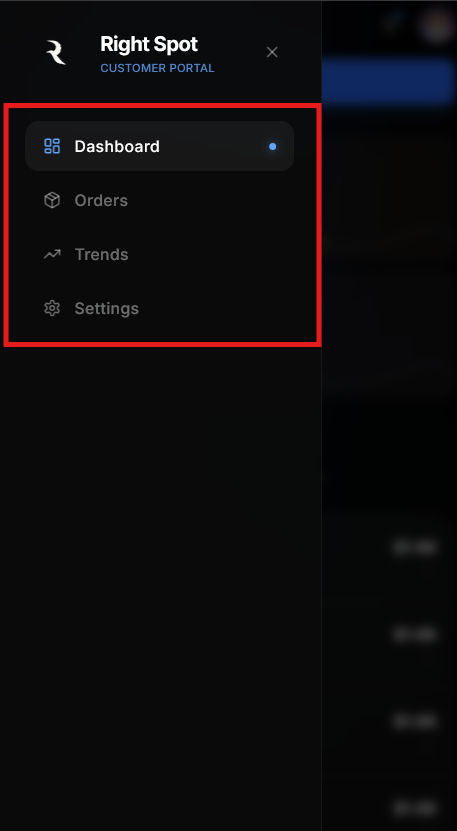
What to do next
From the Overview, you can:- Place a new order by clicking the Buy Pokecoins button
- View your order history to check past purchases
- Check your trends to see purchasing analytics
- Update your settings to configure notifications
Continue to Orders to learn about managing your complete order history.