> ## Documentation Index
> Fetch the complete documentation index at: https://docs.rightspot.store/llms.txt
> Use this file to discover all available pages before exploring further.
# Settings
> View your account information and manage email preferences
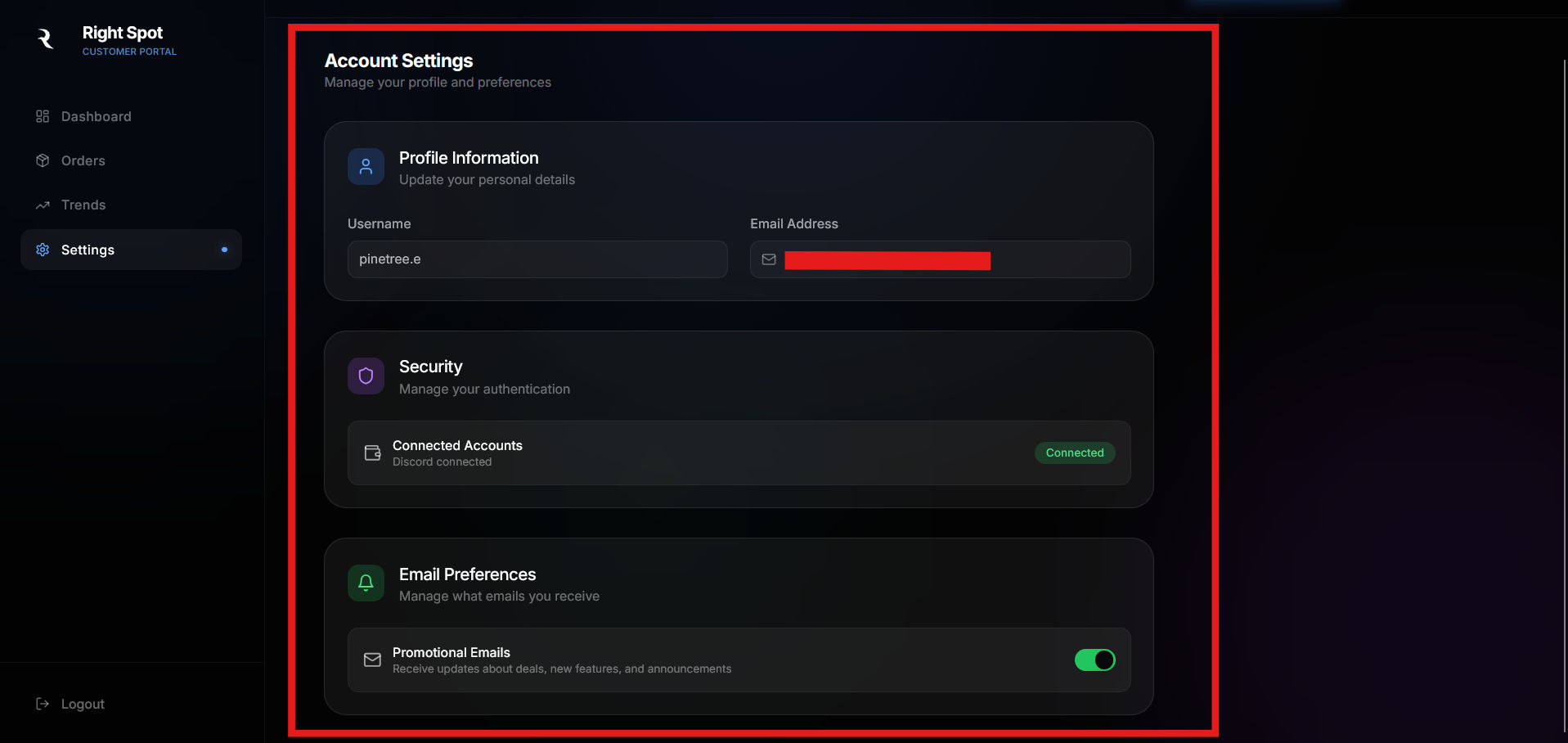
The Settings page displays your account information and allows you to manage your email preferences.
## Accessing settings
Navigate to **Settings** in the sidebar to access your account settings.
***
## Profile information
The first section displays your account details from your Discord authentication.
### Username
Your Discord username is displayed here. This is pulled directly from your Discord account and cannot be changed on Right Spot.
### Email address
The email address associated with your Discord account. This email is used for order confirmations and delivery notifications.
To update your username or email, make the changes in your Discord account settings. The updates will reflect in Right Spot on your next sign-in.
***
## Security
The security section shows your connected accounts.
### Connected accounts
Shows your Discord account connection status. Since Right Spot uses Discord for authentication, your Discord account will always show as connected when you are logged in.
***
## Email preferences
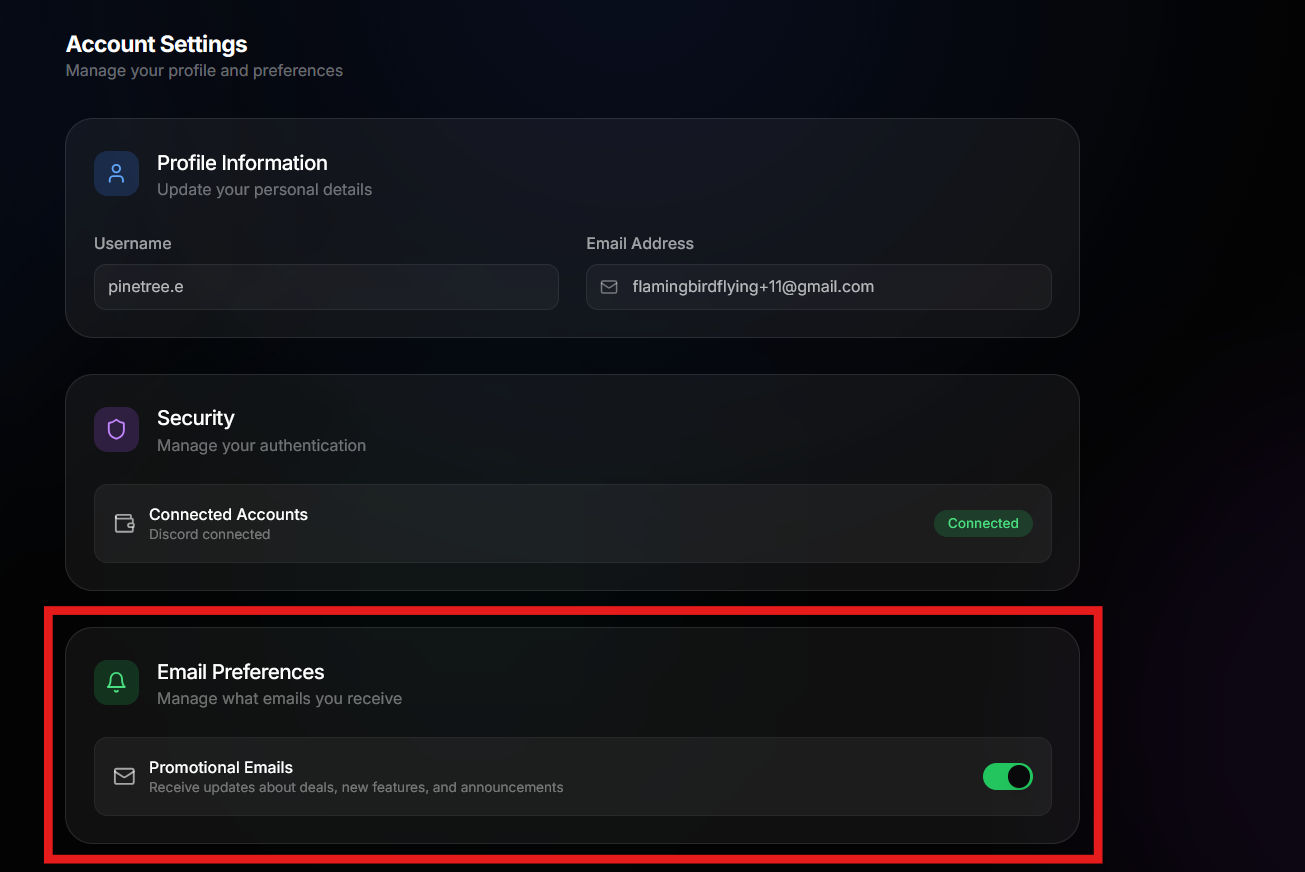
Control what promotional emails you receive from Right Spot.
### Promotional emails
Use the toggle to enable or disable promotional emails. When enabled, you will receive:
* Updates about special deals and discounts
* New feature announcements
* Stock alerts and pricing updates
When disabled, you will only receive essential transactional emails such as order confirmations and delivery notifications.
Transactional emails about your orders cannot be disabled. These are essential communications about your purchases.
***
## Signing out
You can sign out of Right Spot by clicking the sign-out option in the sidebar. Signing out ends your current session but does not delete your account or order history.
***